How to Set Up the Aqara Camera Hub G350 for Matter and HomeKit
Introduction
When Aqara unveiled the Camera Hub G350, the standout feature was its claim as the first Matter-certified camera on the market. Matter, despite its imperfections, represents a crucial step toward a smart home ecosystem free from vendor lock-in. This guide walks you through setting up the Aqara Camera Hub G350 to work seamlessly with both Matter and HomeKit, ensuring you can enjoy cross-platform compatibility and enhanced security.
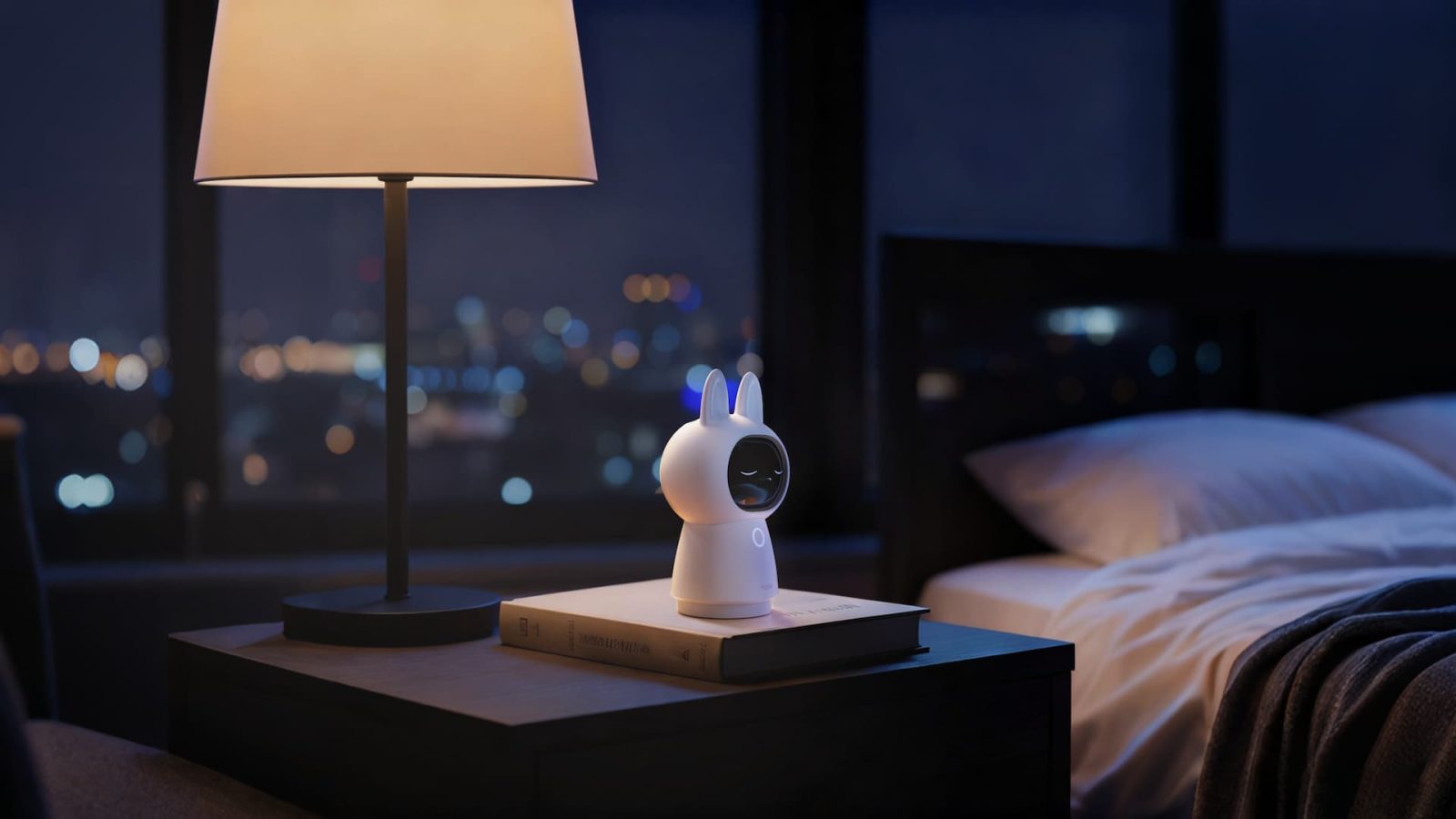
What You Need
- Aqara Camera Hub G350 (including power adapter, Ethernet cable, and mounting accessories)
- Smartphone with the Aqara Home app (iOS or Android)
- Apple device with iOS 16.1 or later (for HomeKit setup)
- Wi-Fi network (2.4 GHz recommended for initial setup)
- Optional: microSD card (up to 512 GB) for local recording
- Matter-compatible smart home hub (e.g., Apple HomePod, Apple TV 4K, or a homePod mini) — required for Matter functionality
Step-by-Step Setup Guide
Step 1: Unbox and Connect Your Camera
Begin by unpacking the Aqara Camera Hub G350. Connect the power adapter to the camera and plug it into an outlet. For a stable connection, use the included Ethernet cable to link the camera directly to your router. If you prefer wireless, the camera will connect via Wi-Fi later, but a wired connection during setup reduces complications.
Step 2: Download and Open the Aqara Home App
On your smartphone, download the Aqara Home app from the App Store or Google Play. Create an account or log in if you already have one. Ensure your phone is connected to the same Wi-Fi network you intend to use for the camera.
Step 3: Add the Camera in the Aqara App
Open the app and tap the + icon to add a new device. Select Camera Hub G350 from the list. The app will prompt you to scan the QR code on the back of the camera or its packaging. Follow the on-screen instructions to pair the camera. You’ll be asked to name the camera (e.g., “Living Room Cam”) and assign it to a room.
Step 4: Update Firmware
Before proceeding, check for firmware updates. Go to the camera’s settings in the Aqara app and look for Firmware Update. If an update is available, install it. Keeping firmware current ensures optimal performance and security for both Matter and HomeKit.
Step 5: Connect to HomeKit
Now it’s time to integrate with Apple HomeKit. In the Aqara app, navigate to the camera’s settings and tap HomeKit Setup. The app will display a HomeKit pairing code. Open the Apple Home app on your iPhone or iPad, tap the + icon, and select Add Accessory. Scan the code with your device’s camera. Follow the prompts to add the camera to your Home configuration. Assign it to a room and choose settings like recording options and notifications.
Step 6: Enable Matter Functionality
The Aqara Camera Hub G350 is Matter-certified, meaning it can communicate with any Matter-compatible hub. To enable Matter, ensure your Apple home hub (HomePod, Apple TV 4K, or HomePod mini) is updated to the latest software. In the Home app, the camera will automatically appear as a Matter device. You can also link it to other Matter platforms (e.g., Amazon Alexa, Google Home) using the respective apps. Follow the manufacturer’s instructions for each platform—typically, you’ll scan the Matter QR code from the product packaging.

Step 7: Configure Camera Settings
Customize the camera to your preferences. In the Aqara app, you can adjust video resolution (up to 2K), motion detection zones, and privacy modes. For local recording, insert a microSD card into the camera slot and format it via the app. In the Home app, you can set up streaming and recording permissions, enable secure video with HomeKit Secure Video (requires iCloud+), and define activity zones.
Step 8: Test the Setup
Finally, test everything. Check live streaming from both the Aqara app and the Home app. Create a motion event (e.g., walk in front of the camera) and verify that notifications appear on your devices. Confirm that recordings are saved to the microSD card or iCloud (if using HomeKit Secure Video). Ensure that the camera responds to automation rules, such as turning on lights when motion is detected.
Tips for a Smooth Experience
- Use a strong Wi-Fi signal: The G350 supports 2.4 GHz bands. Place your router close to the camera or use a mesh network to avoid dropouts.
- Keep firmware updated: Aqara periodically releases updates that improve Matter compatibility and add features. Enable automatic updates if possible.
- Optimize for HomeKit Secure Video: If you subscribe to iCloud+, set up HomeKit Secure Video for encrypted video storage and person/animal/vehicle detection.
- Consider wired Ethernet: For uninterrupted 24/7 recording, use the Ethernet port instead of Wi-Fi.
- Explore Matter’s full potential: Since the G350 is Matter-certified, you can control it from different ecosystems without re-pairing. Experiment with automations in Apple Home or Google Home to see how it interacts with other Matter devices.
- Secure your account: Enable two-factor authentication on your Aqara account and use strong passwords to prevent unauthorized access.
- Mount wisely: The camera is designed for indoor use. Place it on a flat surface or use the included mount for wall installation, ensuring a clear view of the area you want to monitor.